
Qt is cross platform UI widget toolkit, but also more that that. It is extensive application development framework and suitable also for implementing non-GUI related programs.
Qt supports symbian, maemo, windowsCE mobile platforms.
Qt API is implemented in C++.bindings for other languages like python, java, ruby also exist.
Qt Cross Platform Architecture.

The implementation of qt uses the private implementation programming idiom which separates the interfaces from the platform specific changes. the application just needs to be re-complied for the target platform in the corresponding development environment.
Qt Class Library

Qt object model
Qt expands C++ with Meta Object Model, it adds the following features to c++.
• Hierarchical and query-able object trees.
• Signals and slots mechanism for object communication.
• Events, Event-Filters and Timers.
• String Translation.
• Guarded pointers.
• RTTI[Type Identification and dynamic casting]
• Discoverable object properties.
QObject hierarchy tree
• QObject is the heart of Qt object model and base class of all Qt Objects.
It provides object trees and object ownership with parent-child relationship.
• A parent owns its children, the mechanism provides memory management for object trees, but no garbage collection for other allocations.
• Parent controls the childrens visibility,but a child object can be explicitly hidden.
Object Tree
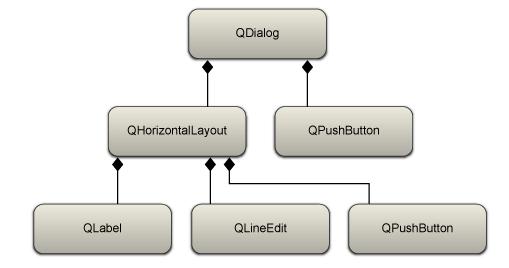
Here The top most dialog that has a layout set and a push-button that is outside the layout.
within the horizontal layout there is a label,line-edit and a push-button.
Meta –object system
Meta –object system is based on 3 things.
• QObject class
• QObject macro
• Meta object compiler
• The QObject base class has capabilities to support meta object system(connect method that connects a signal to a slot.)
• Q_OBJECT which is declared inside the private section of the class,states that it requires meta object compiler.
• Meta object compiler is executed automatically before the actual compilation,it generates the c++ code which required for the compilation process.
QApplication
QApplication is the one class that handles event loop and the main settings of an application.
No matter howmany widgets may present in an application there must exist one QApplication instance.
The responsibilities of QApplication includes
• Perform event handling.
• Manage application settings like[screen size,font,application stylesheet and many other tasks].
Events in Qt
When something of interest for the application occurs,for example
A key is pressed,
A mouse is moved,
A Network packet has arrived.
Then an event is created. It is represented as an object of the QEvent class. such as QFocusEvent.Information about the event is enclosed with in this event object.
Events are received and handled by event handlers of QObject.The actual event handler depends on the type of event that has occurred. like if the event mouse movement occurs it is handled by
mouseMoveEvent event handler.
Events are mostly created by the underlying window system but they can also be created by the developer too.The application contains an eventloop that manages and sends event to the objects they are meant for.Eventloop is started by calling the QApplication “exec” method after initilisation,in the beginning of every Qt application.typically in the main function.
Generally,no longer interaction can take place before starting this main event loop.
Signals and Slots
signals and slots offer a way to communicate between QObjects.
A Signal can be emitted by a QObject.
A Slot is a member function which can be connected to a particular slot, or can be called in response to a particluar emitted signal call.
Many predefined signals and slots exist.but subclasses can define and add their own ones.
Signature of signal should match the receiving slot.Another common way to implement observer design pattern is to declare an interface class which is then implemented by all observers.
Signals and Slots are easier to use and they dont need to implement an interface.
Signals and Slots offer loose coupling with many to many relationship by nature.it means a class which emits a signal need not know to which slot it is going to connect to.
Signals
A signal is a way to inform a possible observer that something of interest has occurred in side the observer class.
Some example are.
1.A Http request has been sent to a server and asynchronous handling of request has been finished.
QHttp emits a “requestFinished(int id,bool error)”.
2.A value of slider has been changed.
Qslider emits a valueChanged(int value) signal.
3.A Pushbutton has been clicked.
QPushButton emits a clicked(bool checked) signal.
Signals are sent using the keyword “emit”.
Signals are declared by the developer and implemented by the "moc"[meta object compiler.]
1.Signals can never have return type.[void or any return type is not allowed for signals]
2.signals can take any number of arguments.
3.Inorder to connect a signal with a slot the signature of the signal should match with the receiving slot.
And the number of arguments should be equal to the arguments of the slot.
